
CMS
Publish on your own WordPress
Deploy WordPress with managed MariaDB and a public HTTPS URL. You own the instance. You pay for compute — not per site.
TemplatesWordPress
What you get
A private WordPress, packaged to ship
Posts, pages, themes, and plugins on your instance — MariaDB, uploads, and the public URL are wired at deploy.
Posts and pages
Write in the block editor. Drafts, revisions, and the media library stay on this instance.
Themes and plugins
Install from wordpress.org or upload your own. Nothing is locked to a host marketplace.
Public HTTPS URL
WP_HOME and WP_SITEURL are set to your https://…stackblaze.app hostname so links and admin resolve.
Dedicated instance
Posts, users, and uploads stay on this instance — not on a shared vendor account.
Managed MariaDB
Content lives in MariaDB — not a file inside the container. Restart the app and the site is still there.
Five-minute installer
First open is the WordPress installer. That account is the admin.
See WordPress in action
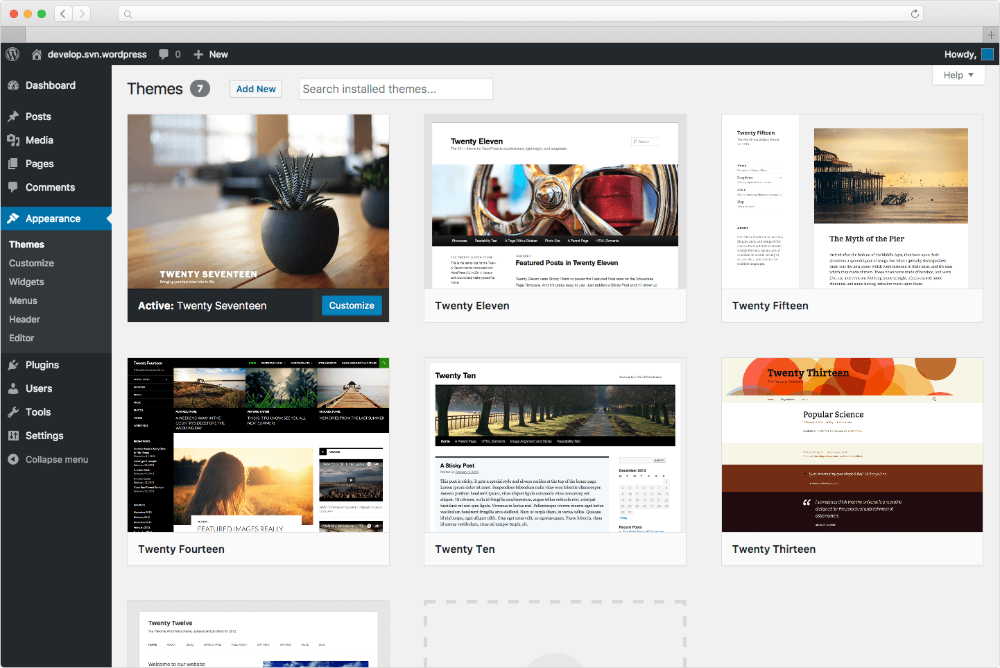
Deploy in seconds
One click. MariaDB pre-wired.
Pick the WordPress template. StackBlaze creates WordPress, MariaDB, a public HTTPS URL, and sets the site URL.
This stack
Web
WordPress server
MariaDB
managed database · TCP:3306
platform SMTP when the pipeline has mail
- Stack
- WordPress + MariaDB
- First login
- Open the URL. Finish the five-minute installer. That account is the admin.
- Platform email is wired when the pipeline has SMTP. Trial instances skip it.
After you deploy
- 1
Open the public URL
The hostname is on the app page after deploy. First load is the language step, then the installer — not a login form.
- 2
Create the admin
Site title, username, password, and email. That account owns the site until you invite others.
- 3
Publish
Pick a theme, add plugins if you need them, and write the first post. Media lands on the volume.
Running WordPress on StackBlaze
How the instance is wired
WordPress and MariaDB ship together. The public hostname is the site and wp-admin. Uploads live on a volume.
MariaDB holds the site
Posts, users, and options live in the attached database. Restart the app and the site is still there.
Uploads sit on a volume
wp-content (uploads, plugins, themes, languages) is mounted. Media survives a restart.
Site URL is already set
WP_HOME and WP_SITEURL follow the public HTTPS hostname so permalinks and admin stay on this instance. Attach a custom domain from the dashboard when you want a branded site.
Mail uses the platform add-on
A must-use plugin sends wp_mail() through SMTP_* when the pipeline has email. On a trial with no SMTP host, the plugin does nothing.
Compare
WordPress on StackBlaze vs hosted WordPress
| Feature | WordPress on StackBlaze | Hosted WordPress |
|---|---|---|
| Data location | Posts, users, and uploads live on your StackBlaze instance. | Content stays on the host platform. |
| Install model | One-click template. Installer on first open. | Create a vendor account and use their shared platform. |
| Themes and plugins | Any theme or plugin you install. No marketplace lock. | Often limited to the host’s catalog or plan. |
| Operations | You control updates, scale, backups, and the instance lifecycle. | The vendor operates the platform and the limits. |
| Billing | Compute, storage, and bandwidth. No per-site fee. | Usually priced per site or per plan. |
This template is WordPress plus MariaDB. The first account is created on the public URL.
FAQ
Common questions
Open the public URL. Finish the five-minute installer (language, then site title, username, password, email). After that, sign in at /wp-login.php with that username.
Ready to deploy WordPress?
One click. Dependencies pre-wired. No infrastructure to manage.